
Card messages on Shopify: a capture and print checklist
Take the price, the stems, and the wrapping away from a flower order and one thing is left: what the card says. It is the entire reason most gift arrangements get bought in the first place, and it is the one part of the order a customer cannot proofread once it leaves the shop. Everything else about the transaction is recoverable if something goes wrong. A wrong or missing card message usually is not.
Which makes it strange how often the card message is the least-engineered field in a florist's Shopify setup.
Where the message gets lost
A gift-message setup needs a complete handoff test. Whether you use a dedicated app field, a product property or a cart note, check the saved order and actual printed card. Length validation, persistence and printing depend on the theme, app and template you configure.
The fix is not a better note field. It is treating the card message as a first-class part of the order, captured the same way everywhere an order can start. It is one gap on a longer list — see everything else Shopify leaves out for florists for the full picture.
Capturing it wherever the order starts
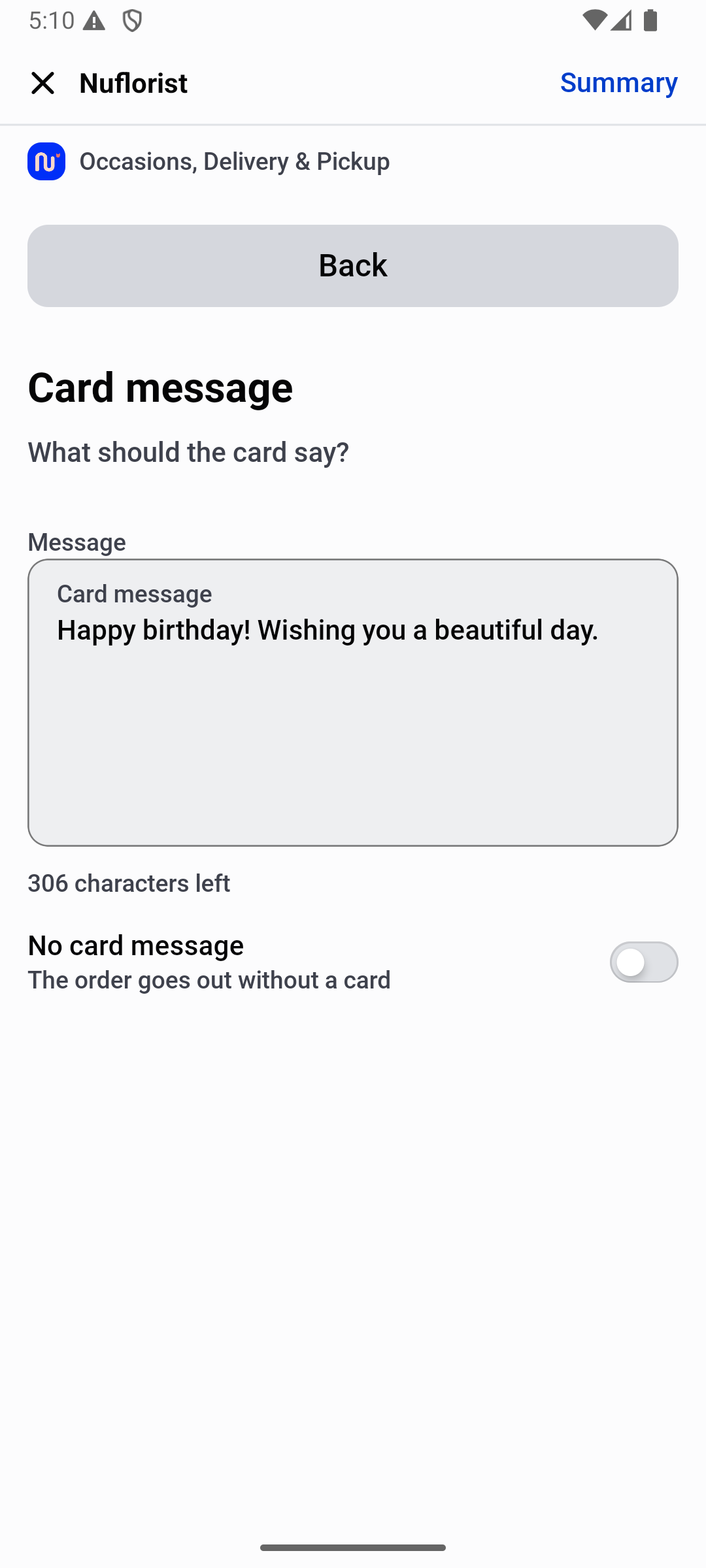
Test each channel your shop uses: product page, cart, phone orders and walk-ins. Record where the message is entered and where staff find it afterward. The historical NuFlorist POS capture below shows message entry; it does not establish that every storefront or saved order behaves identically.
Help when the shopper — or the merchant — doesn't know what to write
If you use AI suggestions or a saved message library, treat the result as a draft. Read the wording, names and occasion before adding it to an order. Confirm current feature availability and plan requirements during setup; a suggestion should never be treated as an automatic customer communication.
Printing it without a human retyping it
Choose the printing workflow your shop actually uses, then test its field mapping. Compare the saved message with the preview and a physical card. Check fonts, accents, line breaks and long messages. If you use Order Printer Pro, validate the configured template rather than assuming that installing an app guarantees the correct output.
What to check before you trust the setup
A few quick checks catch most of the ways a card message setup quietly fails:
- Does the field length match the physical card? A message field with no limit will happily accept text that does not fit the enclosure card the shop actually stocks.
- Does a counter order end up looking identical to a web order? If a phone order lands in a different format than a website order, someone is retyping it — and that is where the message drifts from what the customer actually wrote.
- Does the message survive a slow network day? A field that only saves after checkout fully completes can lose the message if the connection drops at exactly the wrong moment.
- Can the printed template be previewed before it goes to paper? A live preview catches a message that is too long for the chosen card style before it is wasted on real card stock.
None of these are dramatic failures. They are the small, unglamorous checks that decide whether "the card message" is a solved problem or a recurring one.
A practical card-message handoff test
Before using a new setup for customer orders, run a practice order through every handoff. Use fictional names and a sample message, then compare the original text with the saved order and the actual printed card. A visible input field is only the first checkpoint.
Include accents, punctuation and line breaks in the sample. Try a longer message and check the preview against the card stock you actually use. A remaining-character counter measures text length; it does not guarantee that the selected font and layout fit your card.
Test the no-card choice separately from an accidentally empty message. Reopen the saved order and confirm the designer can distinguish those two cases. If your shop accepts both online and counter orders, repeat the test in each channel instead of assuming identical results.
Finally, make a correction before fulfillment and check the saved order and print preview again. Record which screen is the source of truth for staff. Keep a short shop-specific checklist so a theme, app or printer-template update prompts the same checks before the next busy weekend.
Keep checking after changes
Put the three pieces together and the standard to hold a Shopify florist setup to is simple: the card message is captured as its own field everywhere an order can start, it reaches whoever prints it without being retyped, and a merchant or shopper who is stuck for words has a reviewable starting point rather than a blank box. Miss any one of the three and the message becomes the thing a shop has to double-check by phone — which is exactly the call a good setup exists to prevent.
See the full occasions and card-message feature set, how the same fields work inside Shopify POS, or install NuFlorist from the Shopify App Store to set it up on your own store.